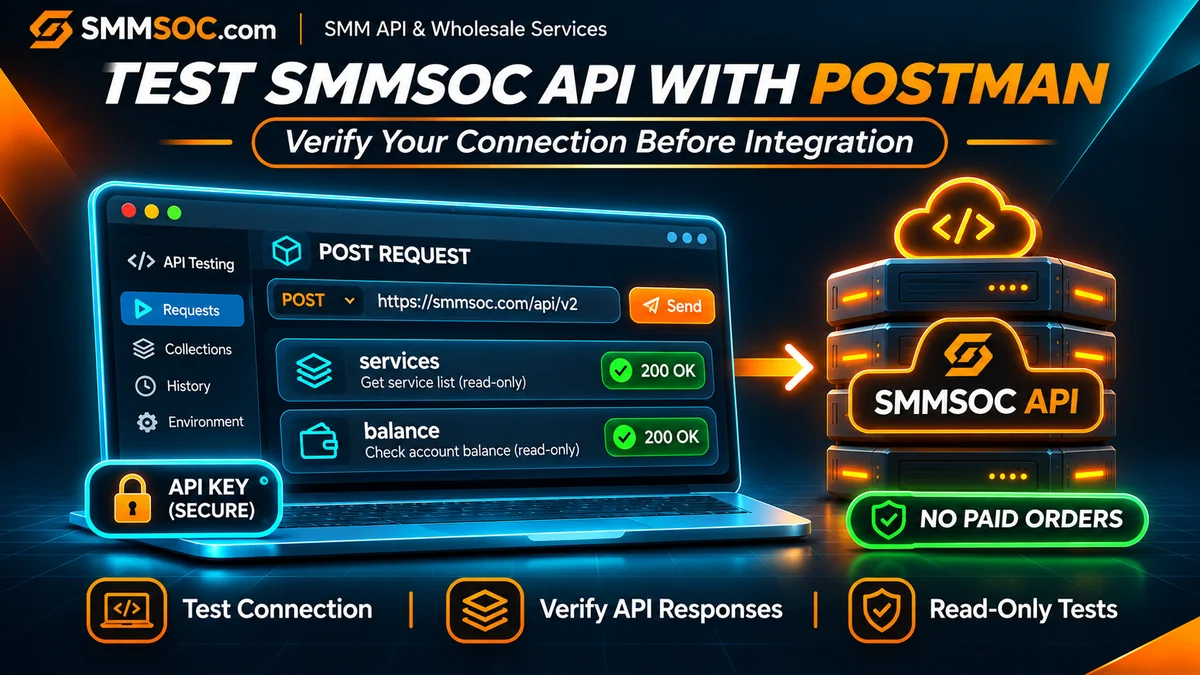
How to Test SMMSOC API With Postman Before Integration
You have an SMM reseller panel, a custom ordering website, or an application that needs an external service supplier. Before spending time connecting a new API, you want to answer a practical question:
Can my application communicate with this provider, and does the API return the information my business needs?
You do not need to build an entire integration to begin answering that question.
With Postman, you can send HTTP requests to the SMMSOC API, inspect the responses, and confirm whether your credentials and basic supplier operations are working.
This is particularly useful if you are evaluating SMMSOC as a wholesale API provider for an existing reseller business.
The goal is simple: verify the connection before enabling real customer orders.
Quick answer: To test SMMSOC API with Postman, create an SMMSOC account, obtain your API key, configure a POST request to https://smmsoc.com/api/v2, and send the documented services or balance action. Review the JSON response before integrating the provider into your reseller application.
These initial operations retrieve information rather than create paid orders.
You can create your SMMSOC account and review the official SMMSOC API documentation before beginning.
Why Test an SMM Panel API Before Connecting It?
A reseller may spend considerable time integrating an external supplier.
The work can involve creating a provider connection, mapping Service IDs, updating catalog information, handling order responses, and connecting status tracking to the customer dashboard.
If the initial API configuration is incorrect, that work becomes harder to troubleshoot.
Testing with Postman helps separate two questions.
The first is whether you can successfully communicate with the supplier API.
The second is whether your reseller software correctly implements the provider's operations.
Postman helps with the first question before your application is involved.
It can also give a developer a reference response to compare against the results received by the reseller backend.
Who Is This Guide For?
This walkthrough is particularly relevant to:
- SMM reseller panel owners evaluating SMMSOC as a supplier.
- Developers preparing a new provider integration.
- Agencies with custom order-management applications.
- Perfect Panel users reviewing external API compatibility.
- Existing SMM businesses considering an additional wholesale provider.
You do not need to submit a paid order to perform the initial checks described here.
However, these checks cannot establish future delivery performance, service quality, or the availability of every provider function.
What You Need Before Starting
Prepare the following:
An SMMSOC account: Register at smmsoc.com/signup if you have not created an account.
Your SMMSOC API key: Obtain the credential associated with your account through the supported account interface.
Postman: Install or open the API client through the official Postman website.
API documentation: Keep the SMMSOC API reference available so you can confirm current parameters and supported actions.
You do not need a completed reseller website for these initial API checks.
If you are evaluating SMMSOC for an existing business, it is helpful to know which service categories and integration operations you will eventually require.
Step 1: Check the SMMSOC API Connection Details
SMMSOC publishes an HTTP API for supported reseller operations.
Its documented settings are:
API endpoint: https://smmsoc.com/api/v2
HTTP method: POST
Response format: JSON
Authentication: Account API key.
The API reference documents several actions, including service listing, order submission, order-status inquiries, and balance retrieval.
For the first connection test, focus on two read-only actions:
services — Retrieves available service information.
balance — Retrieves information about your supplier account balance.
Testing these operations first gives you an opportunity to confirm basic API communication without creating a purchase.
Do Not Confuse the Website With the API Endpoint
The main SMMSOC website is:
https://smmsoc.com
The documented API endpoint is:
https://smmsoc.com/api/v2
For this Postman test, use the full API endpoint.
Sending a request to the homepage is not the same as calling the supplier API.
Step 2: Create a Postman Collection for SMMSOC
Open Postman and create a new collection.
A collection helps you organize related requests instead of repeatedly configuring everything from the beginning.
For example, name your collection:
SMMSOC API — Integration Evaluation
You can use this collection for your service-list and balance requests.
Keep the collection private while working with your supplier account.
Do not publish live API credentials or authenticated response data.
A collection is useful because you can later return to a working request when checking an issue in your reseller application.
For instance, if your custom PHP backend cannot retrieve services but the equivalent Postman request works, the difference may be in your application configuration rather than the supplier's basic API availability.
Step 3: Store Your API Key Securely in Postman
Before creating authenticated requests, decide how Postman will access your API key.
Avoid pasting the actual key into multiple saved requests.
Postman supports variables that can be referenced across request configurations.
For example, you can create an environment named:
SMMSOC Evaluation
Then define:
Variable name: base_url
Value: https://smmsoc.com/api/v2
You can also define:
Variable name: smmsoc_api_key
Value: Your own private API key.
Select the appropriate secure setting and keep the key value local rather than sharing it with a team workspace.
Postman also provides a vault for storing secrets separately from ordinary collection and environment configuration.
For additional information, review the Postman environment variables documentation.
Why Use Variables?
A variable lets you reuse a value without repeatedly typing it.
In a request, a reference such as:
{{base_url}}
can represent the configured API endpoint.
Likewise:
{{smmsoc_api_key}}
can reference your account credential.
The variable name is not the secret itself.
Your real key should remain protected inside your chosen local configuration or secure secrets store.
Never export or publicly share a collection that contains a real API key.
Step 4: Test the SMMSOC Services API in Postman
This is the first request you should configure.
The services action retrieves information about available service listings.
It does not create a paid order.
Create the Request
Inside your collection, add a new request named:
Get SMMSOC Services
Configure these settings:
Method: POST
URL: {{base_url}}
Authorization: No Auth, unless your current provider documentation specifies another authentication arrangement.
The SMMSOC API uses the API key as a documented request parameter.
Next, open the Body tab.
Select:
x-www-form-urlencoded
Enter the following key-value pairs:
Key: key
Value: {{smmsoc_api_key}}
Key: action
Value: services
Make sure both fields are enabled.
Postman will encode the request body according to the selected format.
The request is not a raw JSON document. The API response is JSON, but that does not mean you should automatically submit JSON as the request body.
The Postman request body documentation explains the differences between URL-encoded form fields and raw JSON.
Send the Request
Select the correct Postman environment and click Send.
Postman will display the HTTP response and, when available, the response body.
If authentication and the request are successful, you should receive service information in the format documented by SMMSOC.
What Should You Look For?
Depending on the current service response, fields may include:
service— Supplier Service ID.name— Service name.type— Service configuration type.category— Service category.rate— Published service rate.min— Minimum allowed quantity.max— Maximum allowed quantity.refill— Refill availability information.cancel— Cancellation availability information.
These fields help you understand the catalog your reseller application would need to process.
For example, if your website allows customers to order only services within specified quantity limits, your backend will need to preserve and validate those restrictions.
What Does a Successful Result Prove?
It shows that the submitted request was able to retrieve service information under the current conditions.
It can also help confirm that the account credentials are accepted for that operation.
It does not prove that every listing will remain available or that all future order requests will succeed.
Save the request configuration so you can refer to it later, but avoid publishing private response data.
Step 5: Test the SMMSOC Account Balance API
After verifying the service-list request, create another request in the same Postman collection.
Name it:
Check SMMSOC Balance
Use the same endpoint:
{{base_url}}
Set the method to:
POST
Under Body → x-www-form-urlencoded, use:
Key: key
Value: {{smmsoc_api_key}}
Key: action
Value: balance
Click Send.
If the request succeeds, the API should return the documented account balance information, including the associated currency.
Why Is This Useful?
A reseller application may need to distinguish between a working connection and an account that has insufficient funds for a particular purchase.
The balance response provides a separate way to check authenticated account communication.
However, your supplier balance is sensitive business information.
Do not expose it to public website visitors or include it in screenshots shared with customers.
Also remember that checking your supplier account balance is different from checking the balances of customers registered on your own reseller website.
Those customer records are maintained by your business.
Step 6: Understand the Difference Between API and Business-Level Success
A response from an API should be evaluated at more than one level.
First, there is the HTTP response.
For example, an HTTP status of 200 OK generally indicates that the server successfully handled the HTTP exchange.
Second, there is the content of the response.
An API may return an application-level error, such as invalid credentials or unsupported parameters, even when the HTTP exchange itself completed.
Therefore, an HTTP 200 response alone does not prove that the requested supplier operation succeeded.
Inspect the response body and compare it with the documented format.
For the service-list request, check whether the expected service records are present.
For the balance request, verify whether the returned structure matches the documented account information.
If you see an error, preserve its non-sensitive details for troubleshooting.
Do not copy your API key into a public support ticket.
Step 7: Optionally Check an Existing Order Status
If your SMMSOC account already has an order, you may also evaluate the status inquiry.
This is optional.
You do not need to create a new paid order merely to test this functionality.
Create a Postman request using the documented status action and the actual provider order ID associated with your account.
The SMMSOC API documentation describes status information that may include:
- Order charge.
- Starting count.
- Current order state.
- Remaining quantity.
- Currency.
For a single-order query, use the order parameter and format specified in the current API reference.
Use a Real Provider Order ID
Do not confuse the order identifier used by your own reseller website with the ID assigned by SMMSOC.
For example, your internal customer order might have one identifier while the supplier returns another.
The supplier status request must use the identifier expected by its API.
If you do not have an eligible existing order, skip this step.
The service-list and balance requests are sufficient for the initial connection evaluation.
For more information about status terminology, read our SMMSOC Order Status Guide.
Step 8: Avoid Creating Paid Orders During Initial Testing
SMMSOC documents an add action for creating orders.
That operation is different from the read-only checks described above.
A valid add request may create an actual paid supplier order.
Therefore, avoid using the order-creation action simply to check whether an API key works.
Do not run an automated test collection that includes paid order submissions unless those operations are deliberately authorized and controlled.
If you later need to test an actual order workflow, inspect the selected service's current requirements and understand that the transaction may incur a charge.
Also avoid repeatedly submitting an order after a network timeout.
A timed-out response does not necessarily prove that the provider rejected the original request.
The request may have been accepted even if your client never received its response.
For production integration design, see our SMM Panel API Integration Guide.
Common Problems During a Postman Connection Test
If your first request does not return the expected information, check the request configuration before changing your reseller application.
Incorrect API Endpoint
Confirm that you are sending the request to:
https://smmsoc.com/api/v2
Do not use the regular website homepage as the endpoint.
Incorrect HTTP Method
The documented SMMSOC interface uses POST.
Check that Postman has not been left on GET.
Missing API Key
Verify that your credential variable has a value in the active environment.
If the variable is unresolved, Postman may not send the intended secret.
Incorrect Body Format
Check whether you selected the appropriate form-encoded body type and entered the expected key-value pairs.
Do not assume that choosing raw JSON is correct simply because the API returns JSON responses.
Wrong Action Name
The action must match the operation you want to perform.
For example:
services
and
balance
are different actions.
Unexpected JSON Response
A response body may contain an application-level error.
Review the returned structure before deciding whether the issue involves authentication, parameter configuration, or another condition.
For a broader explanation of integration architecture, read the SMMSOC API guide for resellers.
SMMSOC API Pre-Integration Testing Checklist
Before connecting the supplier to your actual reseller software, review these checks:
- Confirm that your SMMSOC account is accessible.
- Retrieve the correct API credentials through the supported account interface.
- Store the key securely in Postman.
- Use the documented HTTPS API endpoint.
- Select the POST method.
- Configure the body parameters correctly.
- Test the
servicesaction. - Verify the returned service information.
- Test the
balanceaction. - Inspect application-level errors as well as HTTP responses.
- Keep paid order creation disabled during initial testing.
- Avoid sharing live credentials or private balance information.
You do not need an additional website plugin to follow this checklist.
What Should You Do After the API Tests Pass?
Successful Postman requests are useful, but they are only the beginning of a supplier integration.
Your next decision is whether the available API functionality matches your reseller business.
For example, a custom website may need to map internal product IDs to SMMSOC Service IDs.
A larger reseller business may need to retrieve order statuses and maintain accurate provider order records.
A Perfect Panel user may need to verify whether SMMSOC is supported through the platform's provider integration system.
These implementation details are different from manually sending a request in Postman.
Evaluate the Service Catalog
Check whether the available listings are appropriate for your business requirements.
Review current rates, service conditions, quantity limits, and platform policy restrictions.
Do not assume that similarly named services from different providers are equivalent.
Evaluate Your Software Compatibility
Your application must be able to make the required requests and interpret the responses.
If you use custom software, the developer will need to implement the relevant supplier connection and order-record logic.
If you use an existing reseller platform, check its provider integration documentation.
Decide Whether to Connect SMMSOC
If the read-only requests work and the available service information fits your requirements, you can begin planning the actual backend integration.
You can create an SMMSOC account and examine the official API documentation before deciding.
For a broader provider evaluation, review our Best SMM Panel Provider Guide.
Frequently Asked Questions
Can I test SMMSOC API with Postman?
Yes. Postman can send HTTP POST requests to the documented SMMSOC API endpoint using your account's API credentials.
What is the SMMSOC API URL?
The documented API endpoint is https://smmsoc.com/api/v2.
Do I need to deposit money before testing the API?
The initial service-list and balance inquiries do not create paid orders. Account access requirements are governed by the provider's current policies, but you do not need to submit a purchase merely to perform these read-only requests.
Which Postman request should I try first?
Start with the documented services action. It allows you to check the connection and inspect service information without creating an order.
Can I test the balance endpoint?
Yes. The balance action returns account balance information when the authenticated request succeeds.
Should I send the SMMSOC API key in the Authorization header?
Follow the current SMMSOC documentation. The documented request format includes an API key parameter. Do not assume that a bearer token or another authentication method is supported unless it is documented.
Does HTTP 200 mean the API is fully working?
Not necessarily. You should also inspect the response body for errors and confirm that the returned data matches the expected operation.
Will a Postman test place an SMM order?
The services and balance requests described in this guide do not create orders. An add request is a different operation and may create a paid order.
Does SMMSOC provide an official Postman collection?
The public API documentation confirms the API interface, but this guide does not assume that a maintained official Postman collection is available. You can configure the documented requests yourself.
Can I use Postman instead of building an API integration?
Postman is useful for manually testing API operations. It is not a replacement for your reseller application's customer authentication, checkout, order records, or backend integration.
Ready to Evaluate SMMSOC as Your API Supplier?
Choosing a wholesale API provider involves more than checking whether an endpoint responds.
Your reseller business needs compatible operations, understandable service information, accurate order tracking, and a secure way to handle customer purchases.
Postman provides a practical starting point.
You can verify basic communication, inspect the service catalog, and check authenticated account information before connecting the supplier to your website.
If the results match your requirements, the next step is to implement the connection through your reseller backend.
Review the Official SMMSOC API Documentation
Explore the SMMSOC API Integration Guide
Start with read-only requests, verify what the provider actually returns, and build your integration using the documented operations your business needs.